VSCode
- 【extension】 自訂extenstion 位置
- 【extension】安裝
- 【extension】推薦
- 【extension】Code Runner
- 【extension】ProjectManager
- 【extension】sftp
- 【extention】RemoteSSH
- 【tip】修改設定檔(settings.json)
- 【tip】常用settings
- 【tip】format 程式碼排版
- 【extention】Preettier
- 【 VScode】 加入class path
【extension】 自訂extenstion 位置
vscode extenstions 儲存位置
C:\Users\使用者名稱\.vscode
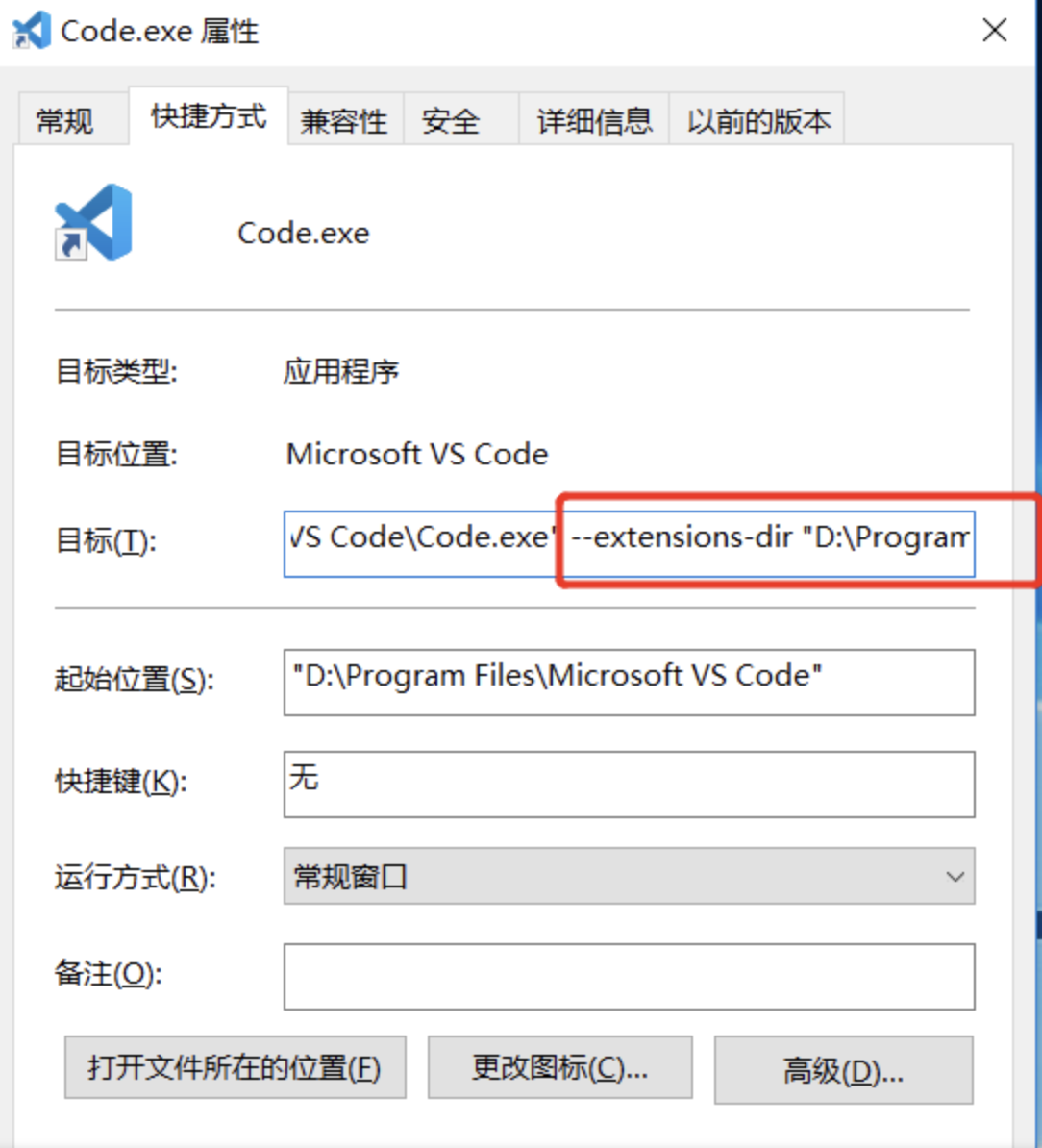
想要自定位置-在捷徑上新增 --extensions-dir 設定extenstion 位置
【extension】安裝
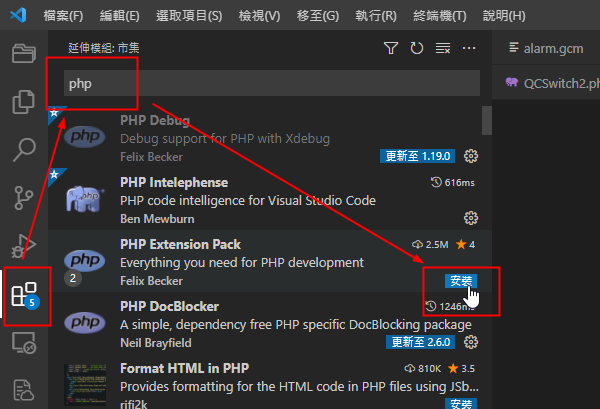
搜尋安裝
VSIX安裝(檔案安裝)
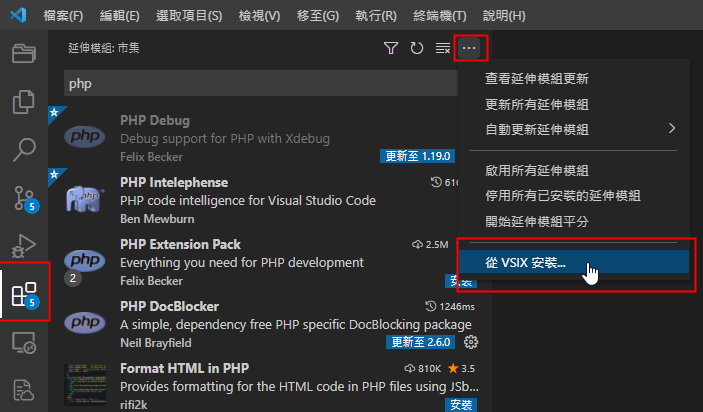
網路連線有問題,無法自動安裝的時候可以手動下載

從VSIX檔案安裝
批次安裝
# 羅列需要安裝的套件
-->寫在 extensions.txt
# extensions.txt
d-biehl.robotcode
eamodio.gitlens
github.copilot
github.copilot-chat
mhutchie.git-graph
ms-python.debugpy
ms-python.python
ms-python.vscode-pylance
# 若要將現有套件可用語法匯出(用來統一最新已安裝套件盤點)
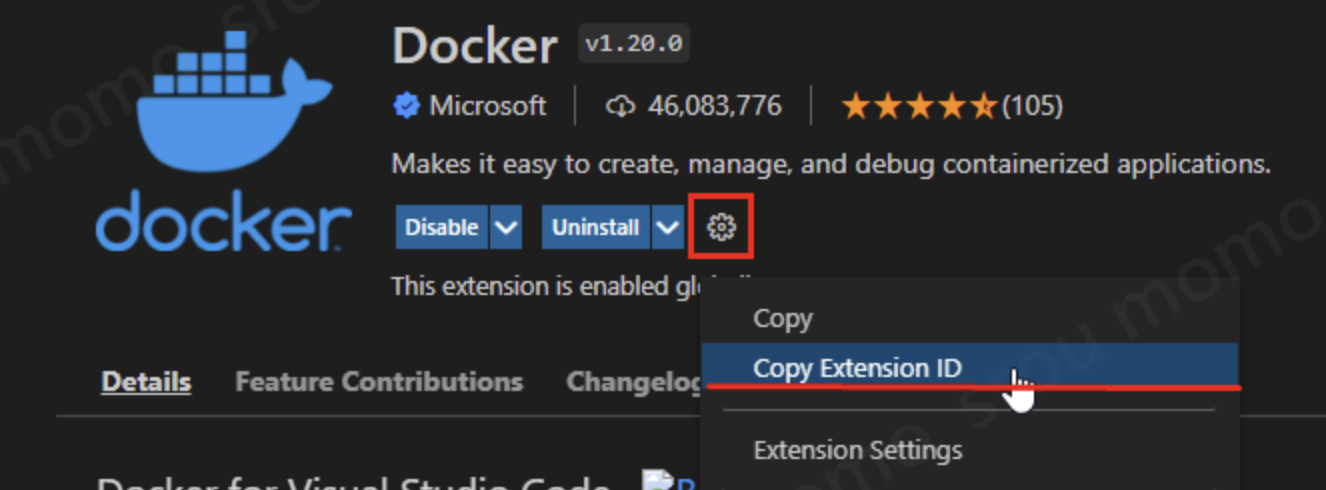
code --list-extensions > extensions.txt# Extensions ID --> 可從界面上的小齒輪複製
Windows安裝
# VSCode Extensions 套件安裝執行檔
--> extensions.txt 放在同一層目錄
-->點兩下執行安裝
# install_vs_extensions.bat
@echo off
for /F %%i in (extensions.txt) do (
    echo Installing %%i ...
    code --install-extension %%i
)
echo All extensions installed.
pause
Linux安裝
# install_vs_extensions.sh
--> extensions.txt 放在同一層目錄
--> bash install_vs_extensions.sh
#!/bin/bash

# 從 extensions.txt 逐行讀取 VS Code 擴充套件並安裝
while IFS= read -r extension; do
    echo "Installing $extension ..."
    code --install-extension "$extension"
done < extensions.txt

echo "All extensions installed."
如果出現code 指令無法辨認,須先將vscode 加入環境變數
【extension】推薦
專案管理

同步原端資料
https://github.com/Natizyskunk/vscode-sftp

React 開發相關

【extension】Code Runner
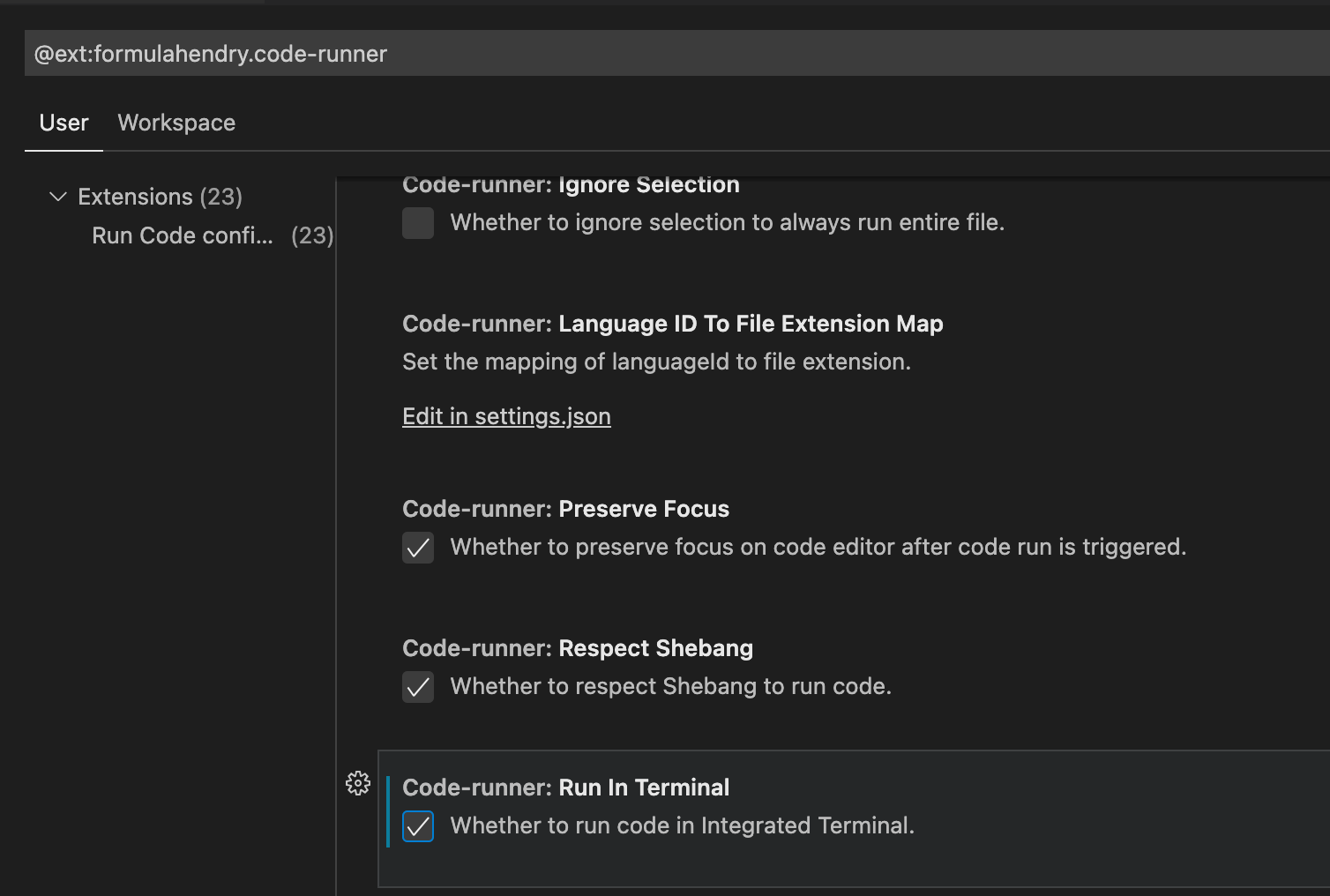
【錯誤處理】列印中文會顯亂碼
【解決】將輸出至終端機打勾
【extension】ProjectManager

// "name": 顯示名稱,
// "rootPath": 本機資料夾("\" 要寫成 "\\"),
// "tag": tag分類,
// 是否顯示
[
	{
      "name": "go_demo",
      "rootPath": "D:\\go_workspace\\go_demo",
      "tags":["go","test"],
      "enabled": true
	},{
       "name": "go_demo2",
      "rootPath": "D:\\go_workspace\\go_demo2",
      "tags":["go","test"],
      "enabled": true
	}
 ]
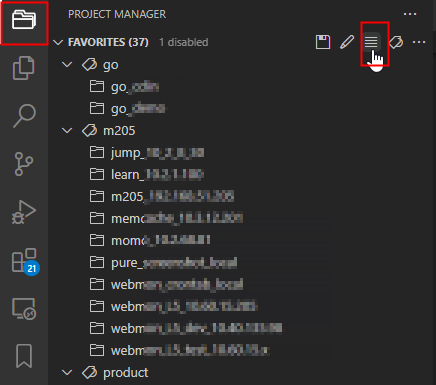
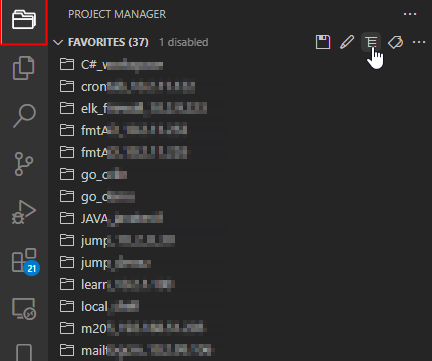
使用 tag / list 排序
【extension】sftp
修正不能下載版本
https://github.com/fibanez7/vscode-sftp/releases
原站:
https://marketplace.visualstudio.com/items?itemName=Natizyskunk.sftp
https://github.com/Natizyskunk/vscode-sftp
產生Config
vscode 按下 Ctrl + Shift + P
輸入 SFTP:Config

Config 相關
單一來源
[
  {
    "name": "demo_10.1.1.1",
    "context": "D:\\php_workspace\\demo",
    "host": "10.1.1.1",
    "username": "user1",
    "password": "12345678",
    "remotePath": "/root"
	}
]
多個來源
[
  {
    "name": "demo_10.1.1.1",
    "context": "D:\\php_workspace\\demo\web1",
    "host": "10.1.1.1",
    "username": "user1",
    "password": "12345678",
    "remotePath": "/root"
	},
     {
    "name": "demo_10.1.1.2",
    "context": "D:\\php_workspace\\demo\web2",
    "host": "10.1.1.2",
    "username": "user1",
    "password": "12345678",
    "remotePath": "/root"
	},
]
使用跳板機(帳號密碼)
[
{
    "name": "jump_demo",
    "remotePath": "/root",
    "context": "D:\\php_workspace\\jump_demo",

    "host": "10.1.1.1", 	// 跳板機ip
    "username": "user1",	// 跳板機 帳號
    "password": "12345678", // 跳板機 密碼

    "hop": {
        "host": "192.168.1.1", // 目的地ip
        "port": 22,
        "username": "target_user",	// 目的地 帳號
        "password": "66778899"		// 目的地 密碼
    },
    // 排除檔案
    "ignore": [
        ".vscode",
        ".git",
        ".DS_Store",
        "**/logs/**",
        "**/sessions/**"
    ],
  	// 儲存後自動上傳
    "uploadOnSave": false
}
]
使用跳板機(憑證)
[
{
    "name": "jump_demo",
    "remotePath": "/root",
    "context": "D:\\php_workspace\\jump_demo",

    "host": "10.1.1.1", // 跳板機ip
    "username": "user1",
    "password": "12345678",

    "hop": {
        "host": "192.168.1.1", // 目的地ip
        "port": 22,
        "username": "target_user",
        "privateKeyPath": "/home/user1/.ssh/id_rsa" //使用憑證(跳板機位置)
    },
    // 排除檔案
    "ignore": [
        ".vscode",
        ".git",
        ".DS_Store",
        "**/logs/**",
        "**/sessions/**"
    ],
  	// 儲存後自動上傳
    "uploadOnSave": false
}
]
第一次設定完,可以按下【Ctrl + Shift + P 】(Mac: Cmd + Shift + P)
鍵入 >SFTP:Sync Remote -> Local
先將遠端資料同步至本機

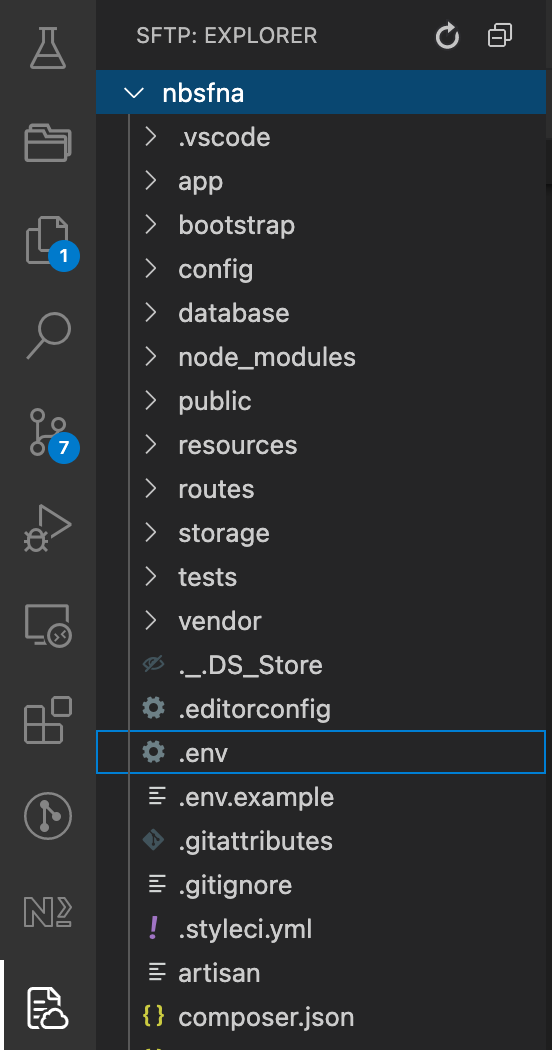
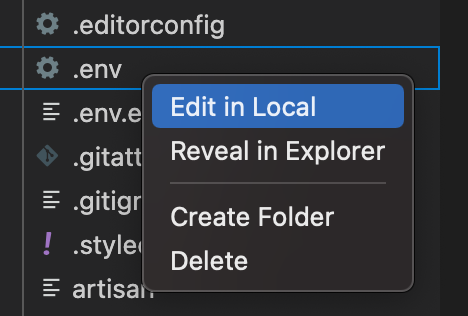
瀏覽遠端檔案/選取Server檔案至本地編輯
選取左側icon

,展開目錄找到要編輯檔案,【Edit in Local】
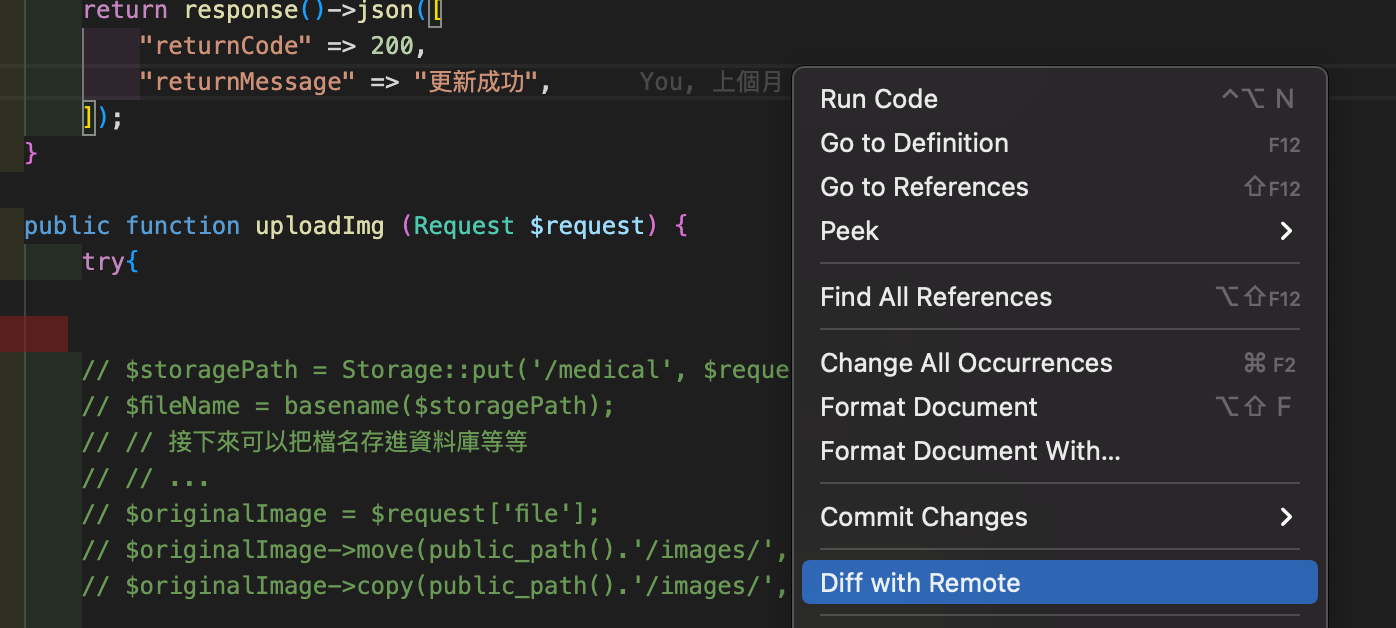
檔案比較
在本地編輯的時候,可以按右鍵【Diff with Remote】與server 檔案比較
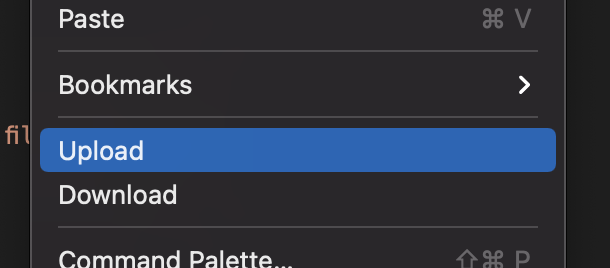
上傳,下載檔案
可以按右鍵,【Upload/ Download】上傳本地檔案至Server 或是 下載Server 檔案
【extention】RemoteSSH
Running the contributed command: ‘_workbench.downloadResource‘ failed解决
1 問題描述
此前,本人參考網上教程在VS Code中配置了“Remote SSH”插件(比如 但是今天使用遇到了問題Error: Running the contributed command: '_workbench.downloadResource' failed
2 解決方案
刪除Remote Server上的~/.vscode-serverrm -rf ~/.vscode-server
在本地的VS Code中再次嘗試連接,毫無意外,這次依然是失敗的。但是這一步會在遠程服務器中生成~/.vscode-server/bin/xxx/vscode-server.tar.gz
上面的xxx的文件夾稱為Commit Id,現在利用Commit ID下載遠程連接需要的文件。
然後使用這個鏈接:https://update.code.visualstudio.com/commit:xxx/server-linux-x64/stable下載所需文件,注意鏈接中的$COMMIT_ID這幾個字符(注意$不要忘記)需要換成自己的,比如我的是2d23c42a936db1c7b3b06f918cde29561cc47cd6,
下載完畢後,將下載的文件upload到Remote Server的~/.vscode-server/bin/xxx
tar -xvf stable --strip-components 1
然後使用chmod +x node server.sh
再次使用VS Code嘗試鏈接,這一步會鏈接成功
原文链接:https://blog.csdn.net/ibless/article/details/118610776
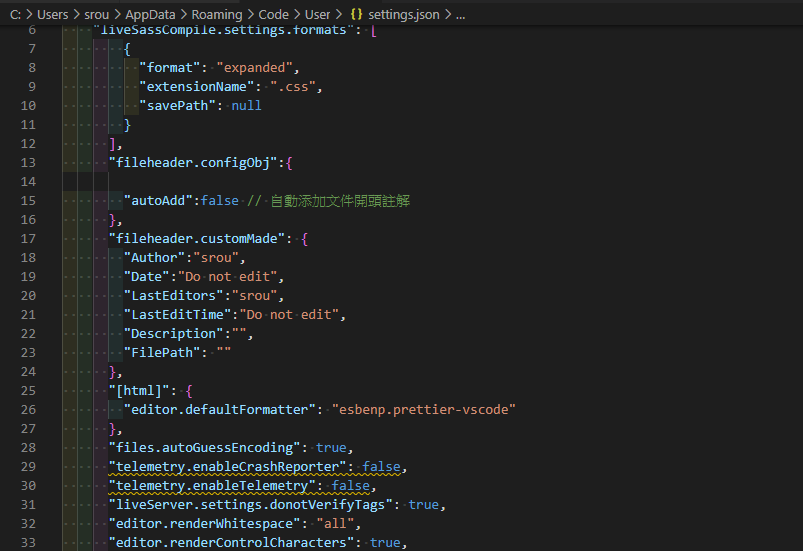
【tip】修改設定檔(settings.json)
圖形化介面
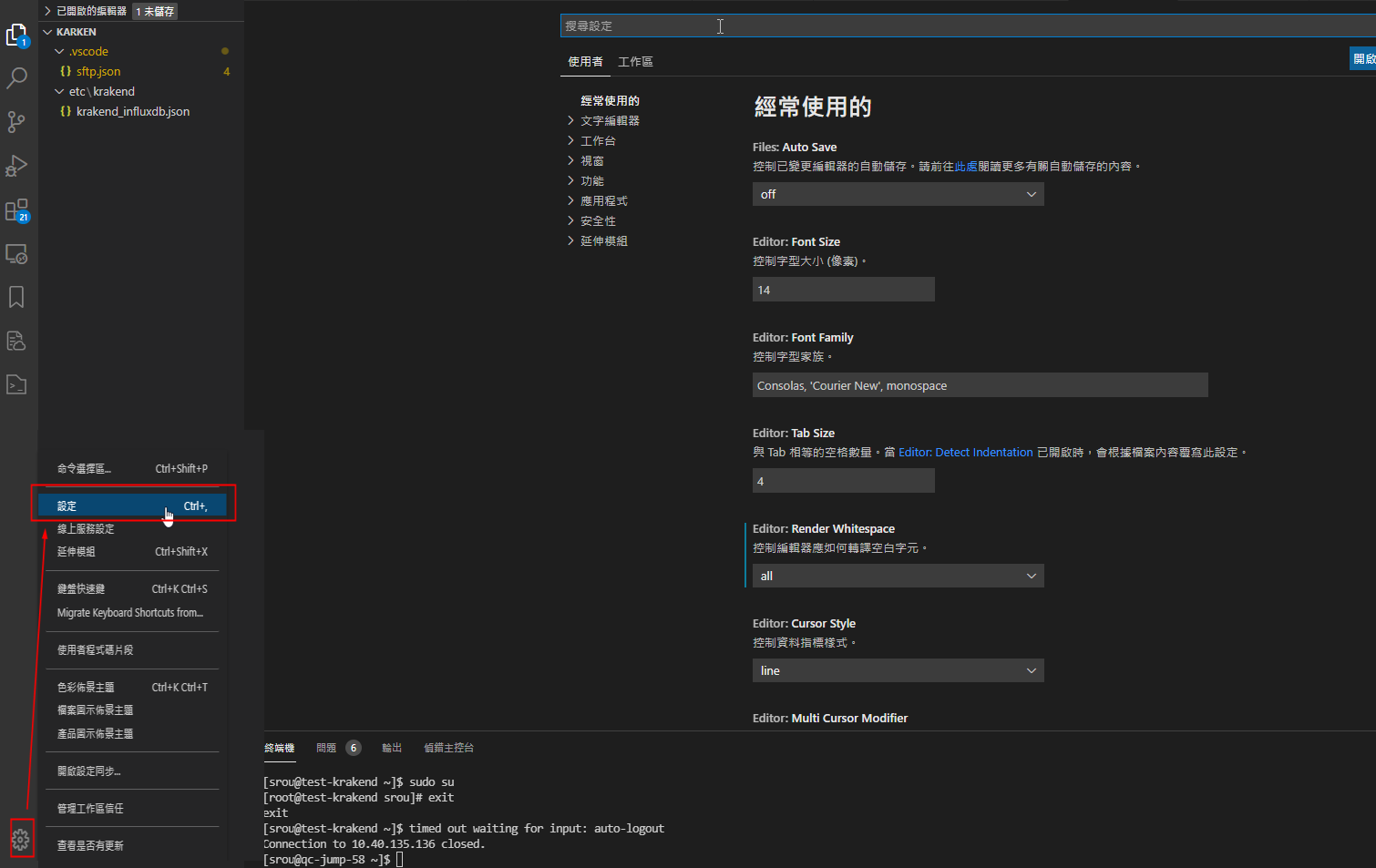
修改 setting.json

【tip】常用settings
修改 settings.json
{
"workbench.editor.wrapTabs": true, 			// tab數量超過一行是否摺疊顯示(false 會出現scroll bar)
"workbench.editor.enablePreview": false, 	// 點選檔案是否使用同一個tab(不另開)

 "editor.defaultFormatter": null, 			// 預設排版引擎
  "[html]": {								// html 使用排版引擎
    "editor.defaultFormatter": "esbenp.prettier-vscode"
  },
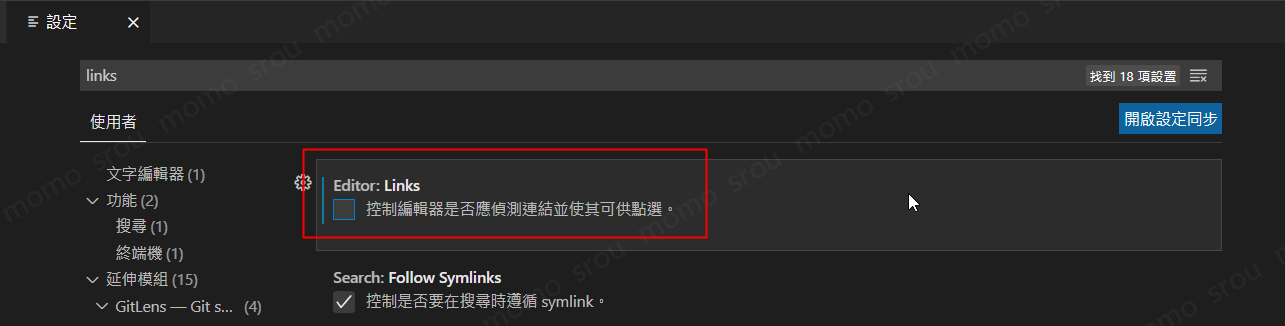
  "editor.links": false, 					// 關閉超連結(避免誤點超連結,選用)
}
editor.links
【tip】format 程式碼排版
快速鍵
在Windows Shift + Alt + F
在Mac Shift + Option + F
在Ubuntu Ctrl + Shift + I
存檔自動格式化(設定 Ctrl + ,)

如何修改預設排版外掛
修改 setting.json (複製後請將註解刪除,避免json格式錯誤)
{
    // 預設formatter引擎
  	"editor.defaultFormatter": null,
  	// javascript 排版使用引擎
    "[javascriptreact]": {
        "editor.defaultFormatter": "esbenp.prettier-vscode"
    },
}
【extention】Preettier

【 VScode】 加入class path
了解,你的意思是想讓 code 指令(用來從終端機開啟 VS Code)在 Zsh 中可以使用。這通常是因為 code 沒有被加入 PATH。以下是解法:
✅ macOS 上讓 code 指令可用(官方方式)
-
打開 VS Code
-
用快捷鍵
Cmd + Shift + P打開 Command Palette -
輸入並選擇:
Shell Command: Install 'code' command in PATH -
關閉終端機重新開啟,輸入:
code --version若能顯示版本就成功了!
✅ 手動加入 code 到 PATH(若上面方式無效)
VS Code 的 code 通常在這裡:
/Applications/Visual\ Studio\ Code.app/Contents/Resources/app/bin
你可以將這段加入 ~/.zshrc:
export PATH="$PATH:/Applications/Visual Studio Code.app/Contents/Resources/app/bin"
然後執行:
source ~/.zshrc
接著執行 code 應該就會有反應了。