
Docker常用指令
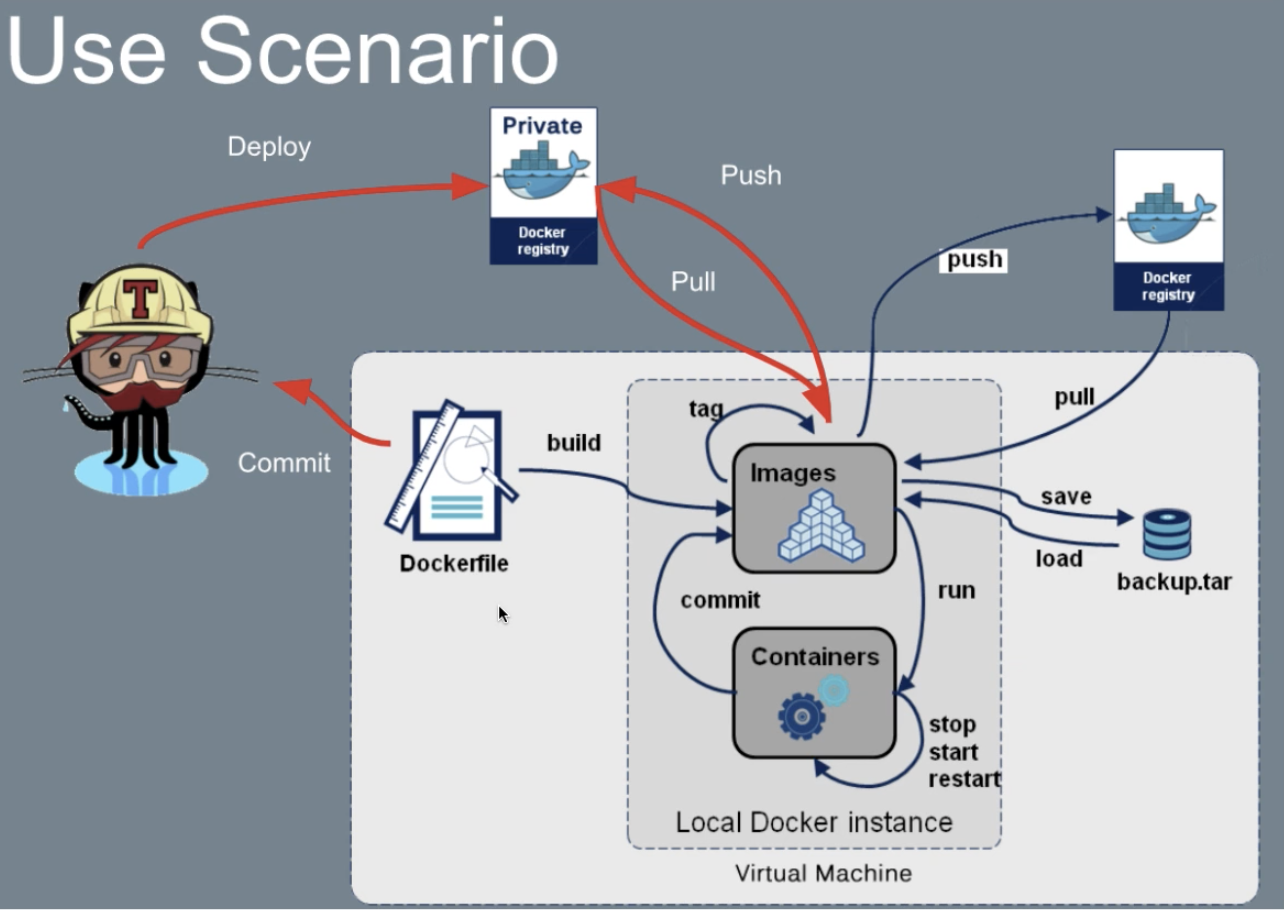
*container 運行
#run:
#-d 背景執行
#nginx 執行什麼服務
#ng 自訂的tagname
#-name 自訂名稱
docker container run -d nginx
docker container run -d -name ngx nginx
docker container run -d nginx:ng
*查看運行container
docker container ls -a

[tomcat@docker-qc ~]$ docker container ls -a
CONTAINER ID        IMAGE               COMMAND                  CREATED             STATUS              PORTS               NAMES
df6ab3df4b14        nginx               "nginx -g 'daemon of…"   9 seconds ago       Up 8 seconds        80/tcp              modest_cray
940d3d804bcd        nginx               "nginx -g 'daemon of…"   7 minutes ago       Up 7 minutes        80/tcp              elastic_raman
*運行container 並進入shell
docker container run -it {container name} sh
*進入已運行container
# 進入名為apache的容器執行sh
docker exec -it apache sh
*刪除container

#-f 強制
docker rm -f {container id}

#刪除所有容器
docker rm -f $(docker ps -a -q)
*複製檔案
# 建立一個hello.html
echo "hello" > hello.html
# 建立apache
docker run -d --name apache httpd:alpine
# 複製檔案至apache容器中
docker cp hello.html apache:/usr/local/apache2/htdocs/
# 複製容器中的檔案至本機
docker cp apache:/usr/local/apache2/htdocs/index.html ./index.html
*掛載目錄
# 把hello.html掛成index.html
docker run -d --name apache2 -v $PWD/hello.html:/usr/local/apache2/htdocs/index.html httpd:alpine
*建立外部連線
# -p port 對應 {本機}:{容器}
docker run -d -v $PWD.hell.html:/url/local/apache2/htdocs/index.html -p 80:80 httpd:alpine
查看要效能
*從主機查看container process


docker container top {container id}*查看狀態
# 容器狀態
docker stats {container id | name }
# cpu ram
docker top {container id | name }
# log
docker logs {container id | name }
docker logs -f {container id | name }